
Avowed Best PC Settings for Max FPS
Mastering Avowed's Graphics Settings for Optimal Performance
Avowed boasts stunning visuals, but optimizing your PC settings is key to enjoying them without performance hiccups. This guide provides the best settings for various PC builds, balancing graphical fidelity and frame rate.
Understanding System Requirements
Before tweaking settings, ensure your PC meets Avowed's minimum or recommended specifications:
Minimum:
- OS: Windows 10/11
- Processor: AMD Ryzen 5 2600 or Intel i5-8400
- Memory: 16 GB RAM
- Graphics: AMD RX 5700, Nvidia GTX 1070, or Intel Arc A580
- DirectX: Version 12
- Storage: 75 GB available space
Recommended:
- OS: Windows 10/11
- Processor: AMD Ryzen 5 5600X or Intel i7-10700K
- Memory: 16 GB RAM
- Graphics: AMD RX 6800 XT or Nvidia RTX 3080
- DirectX: Version 12
- Storage: 75 GB available space
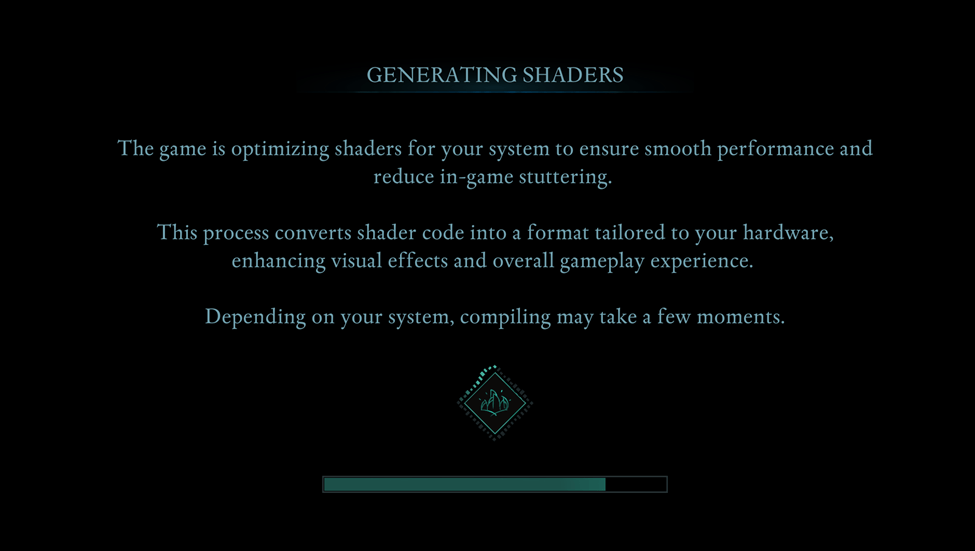
A system between these specs should provide decent gameplay. High resolutions and refresh rates demand a more powerful setup. Allow the game to generate shaders uninterrupted on your first run for optimal performance.
Optimizing Basic Graphics Settings
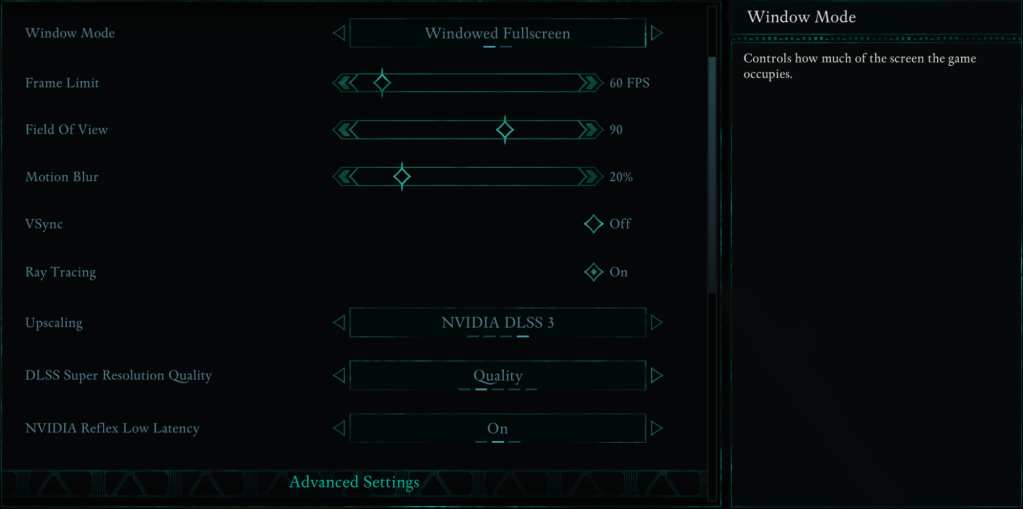
These settings significantly impact your experience:
- Resolution: Native resolution for optimal sharpness.
- Window Mode: "Windowed Fullscreen" for easy app switching; "Fullscreen Exclusive" minimizes input lag.
- Frame Limit: Match your monitor's refresh rate or set to 60 FPS for stability.
- VSync: Disable for reduced input lag; enable if you experience screen tearing.
- Field of View: Around 90 degrees for a balanced perspective.
- Motion Blur: Disable for clearer visuals.
Advanced Graphics Settings
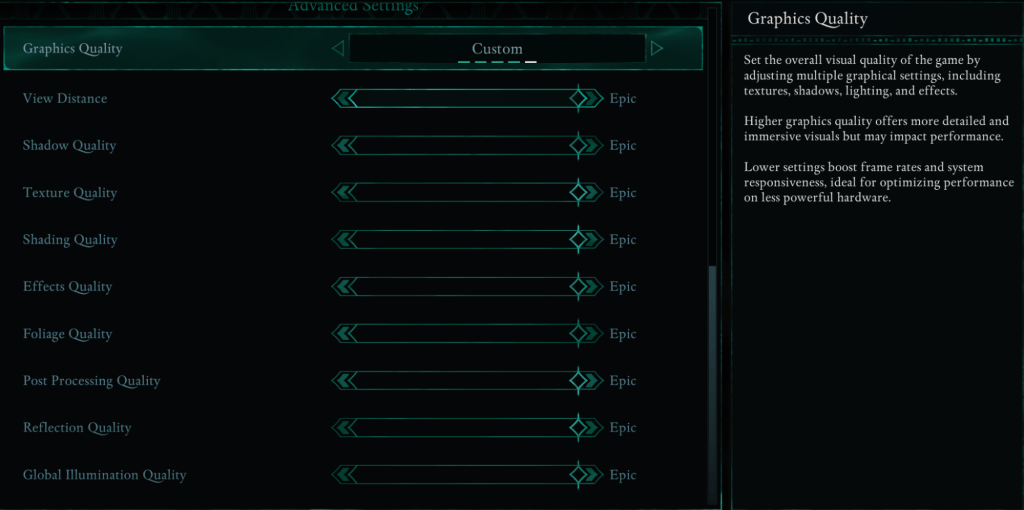
These settings control visual detail and performance:
| Setting | Impact |
|---|---|
| View Distance | Higher settings improve distant detail but reduce FPS. |
| Shadow Quality | Significantly impacts FPS; lower for better performance. |
| Texture Quality | Affects surface detail; higher settings require more VRAM. |
| Shading Quality | Influences lighting depth; lower settings boost performance. |
| Effects Quality | Controls visual effects (fire, magic); higher settings demand more GPU power. |
| Foliage Quality | Determines grass and tree density; lower for improved FPS. |
| Post Processing Quality | Enhances visuals; reducing it saves performance. |
| Reflection Quality | Affects reflections; high settings reduce FPS. |
| Global Illumination Quality | Controls realistic lighting; high settings improve atmosphere but cost performance. |
Recommended Settings:
Low-End PCs (Minimum Requirements): Aim for 50-60 FPS.
- Graphics Quality: Custom (Balanced between Low and Medium)
- View Distance: Medium
- Shadow Quality: Low
- Texture Quality: Medium
- Shading Quality: Low
- Effects Quality: Medium
- Foliage Quality: Low
- Post Processing Quality: Low
- Reflection Quality: Low
- Global Illumination Quality: Low
Mid-Range PCs (Recommended Requirements): Strive for higher FPS and visuals.
- Graphics Quality: Custom (Mix of High and Epic)
- View Distance: High
- Shadow Quality: Medium
- Texture Quality: High
- Shading Quality: High
- Effects Quality: High
- Foliage Quality: High
- Post Processing Quality: High
- Reflection Quality: Medium
- Global Illumination Quality: High
High-end PCs can maximize all settings to "Epic." Explore Avowed mods for further enhancements.
Avowed is available now for PC and Xbox Series X|S.
-
 East Side Games Group is merging two wildly different universes in an exhilarating crossover. Trailer Park Boys: Greasy Money is joining forces with All Elite Wrestling: Rise to The Top. This special event begins on March 27th at 2:00 PM PT, deliveriAuthor : Sarah Mar 17,2026
 -
 After years of speculation about The Sims 5, EA is charting a bold new course for the franchise. Instead of traditional numbered sequels, the company plans to expand "The Sims Universe" with ongoing updates across multiple titles.EA Plans on ExpandinAuthor : Samuel Mar 16,2026
-
 Airport Clash 3D - Minigun ShoDownload
 -
 A RecreativaDownload
 -
 com.crikey.dreamcarnival ModDownload
 -
 تحدي ام حقيقةDownload
 -
 Madden NFL 25 CompanionDownload
 -
 Survivor Z: Zombie SurvivalDownload
 -
 Dinosaur Hunting: Trex HunterDownload
 -
 Z書庫Download
 -
 Word Game. Crossword Search PuDownload
 -
 Buckshot Roulette: PvP DuelDownload









- Classic WoW vs. Turtle WoW: 6 Key Differences
- Ultimate Guide to Shinigami Progression in Hollow Era
- Roblox Simulator Codes: Unlock Exclusive Rewards!
- Mastering Two-Handed Weapons in Elden Ring: A Guide
- Wuthering Waves: Uncover the Secrets of Whisperwind Haven's Palette
- Top 25 Palworld Mods to Enhance Your Game