
"Steam Deck: Running Game Boy Games Guide"
Quick Links
The Steam Deck is a powerful handheld device that not only runs modern games but also excels in retro gaming, especially with the help of EmuDeck. This guide will walk you through setting up EmuDeck on your Steam Deck to enjoy classic Game Boy games.
Updated January 13, 2024, by Michael Llewellyn: While the Game Boy doesn't demand much processing power, achieving a perfect emulation on the Steam Deck requires fine-tuning. This is where Decky Loader and the Power Tools plugin come into play, allowing you to control SMTs and more. This guide has been updated to include instructions for installing Decky Loader and Power Tools, as well as steps to restore Decky Loader after a Steam Deck update.
Before Installing EmuDeck
 To ensure a smooth setup for running emulators and storing your Game Boy games, you'll need:
- A fully charged Steam Deck.
- An A2 microSD card for installing games and emulators.
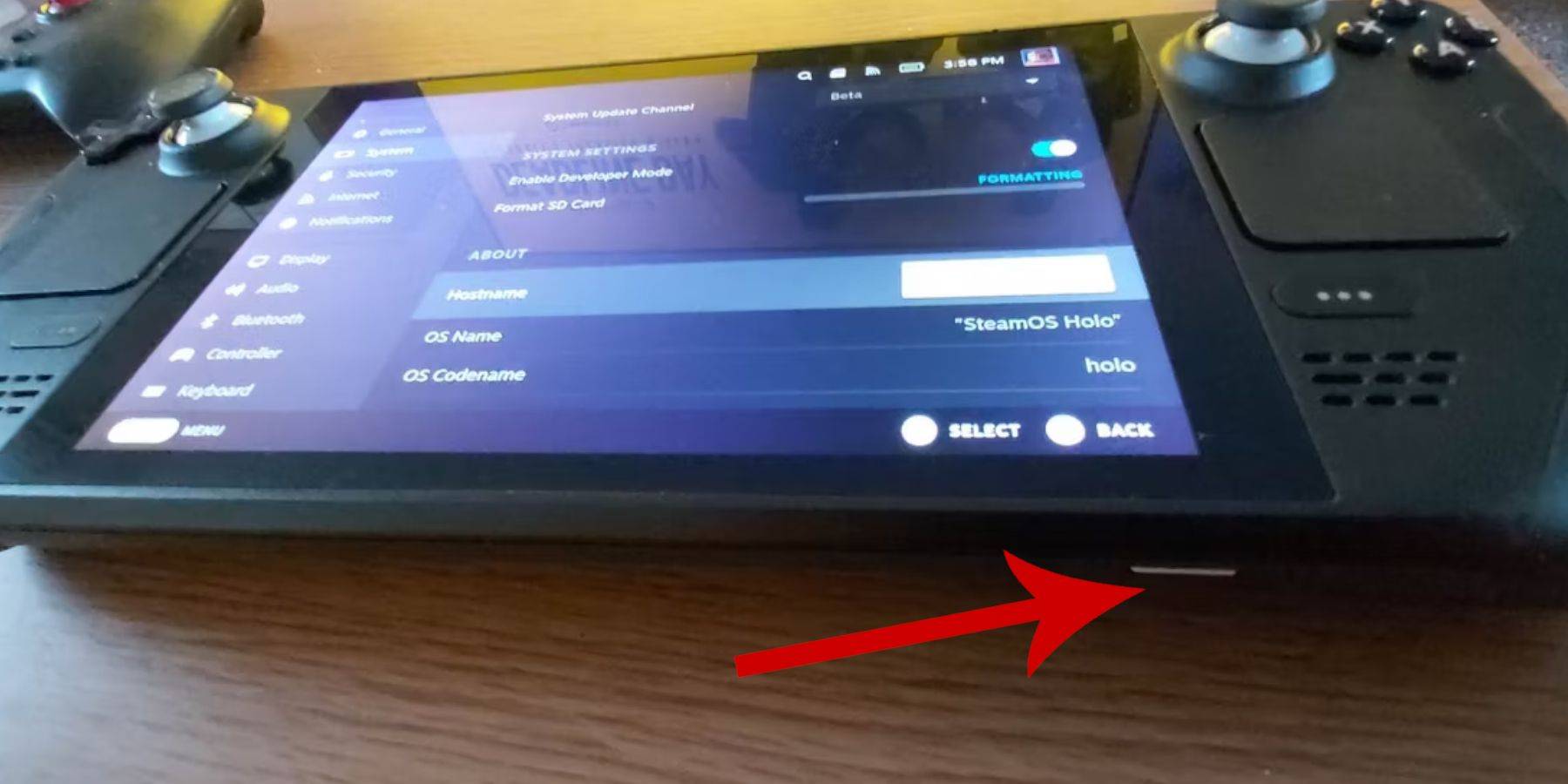 - Legally owned Game Boy ROMs.
- A Bluetooth keyboard and mouse for easier navigation, or a wired set if using a Steam Deck docking system.
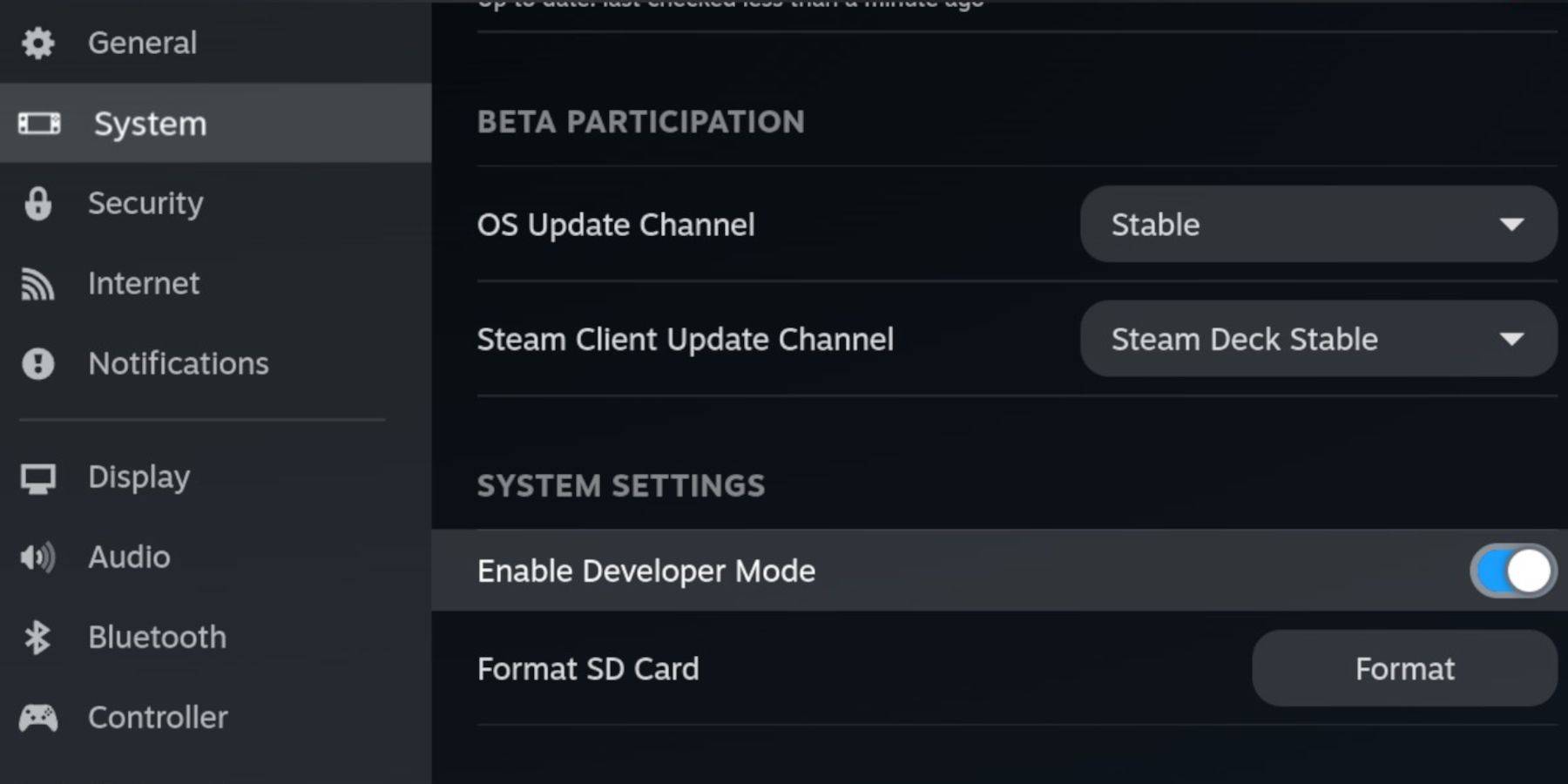
Change Developer Mode
- Press the Steam button.
- Navigate to the System menu and enable Developer Mode.
- In the Developer menu, turn on CEF Debugging.
- Select the Power option.
- Switch to Desktop Mode.
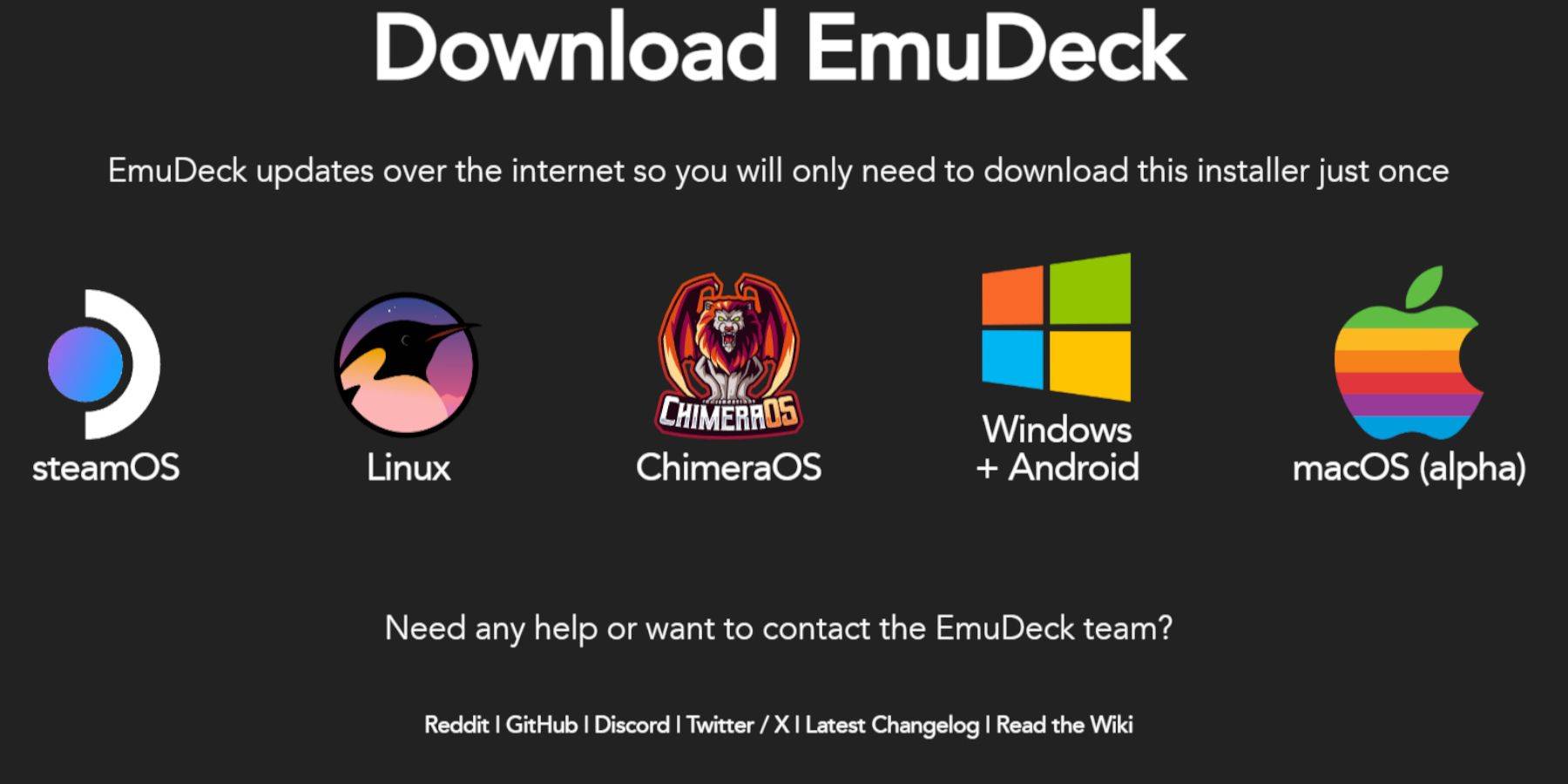
Download EmuDeck In Desktop Mode
 - Connect your keyboard and mouse.
- In Desktop mode, open a browser like DuckDuckGo or Mozilla Firefox and download the EmuDeck program.
- Click 'Download' at the top-right of the page, select 'Steam OS', and then 'Download for Free'.
- Choose 'Recommended Settings'.
- Opt for 'Custom Install'.
- In the EmuDeck menu, select the 'Primary' SD card image.
- In the EmuDeck startup process menu, again select the 'Primary' SD card image.
- You can either install all emulators or select RetroArch, Emulation Station, and Steam Rom Manager, then click 'Continue'.
- Enable 'Auto Save'.
- Skip the next few screens and select 'Finish' to complete the installation.
Quick Settings
- Open the EmuDeck program and navigate to 'Quick Settings'.
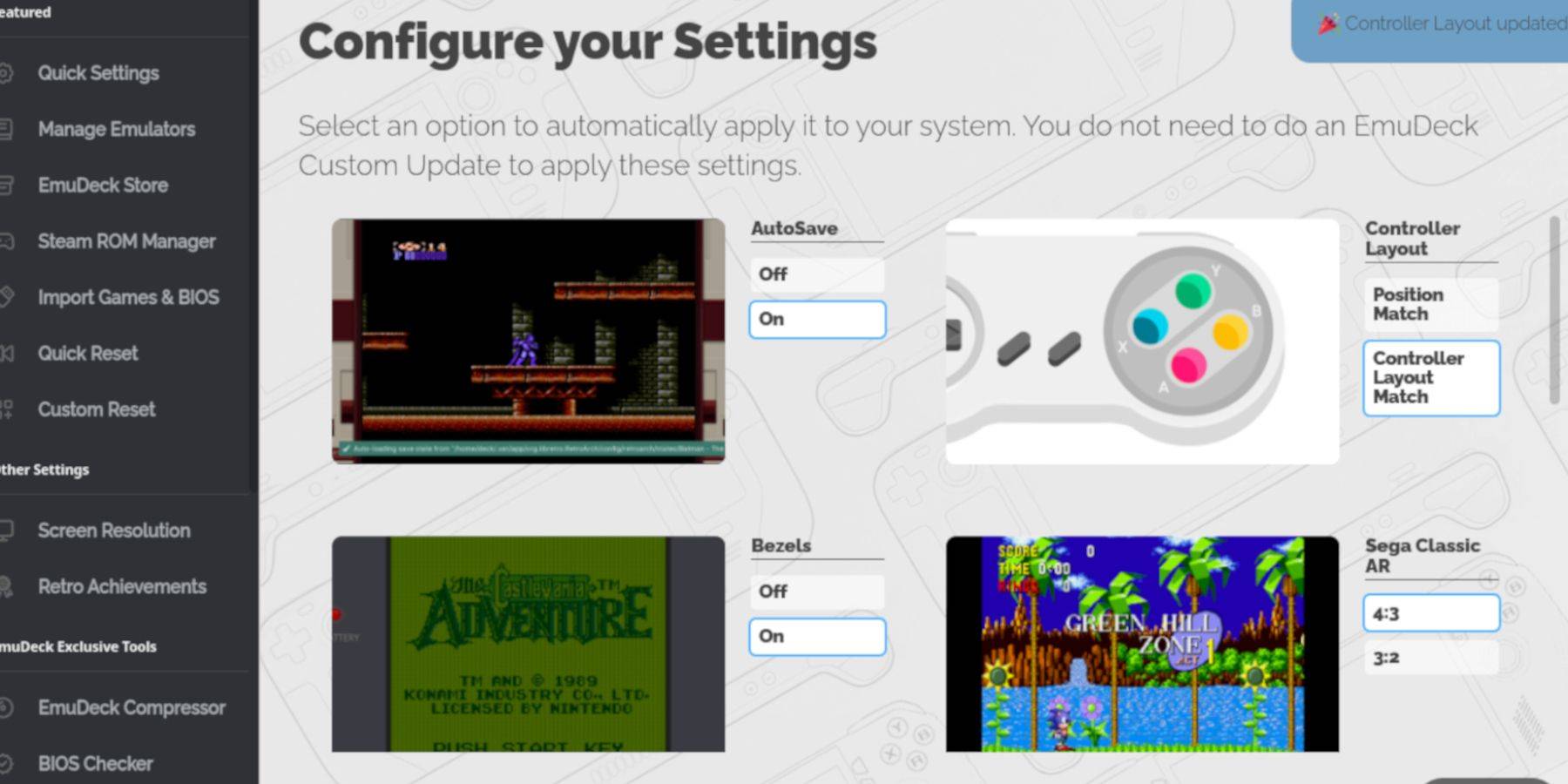 - Turn 'AutoSave' on.
- Select 'Controller Layout Match'.
- Enable 'Bezels'.
- Turn 'Nintendo Classic AR' on.
- Enable 'LCD Handhelds'.
Adding Game Boy Games To The Steam Deck
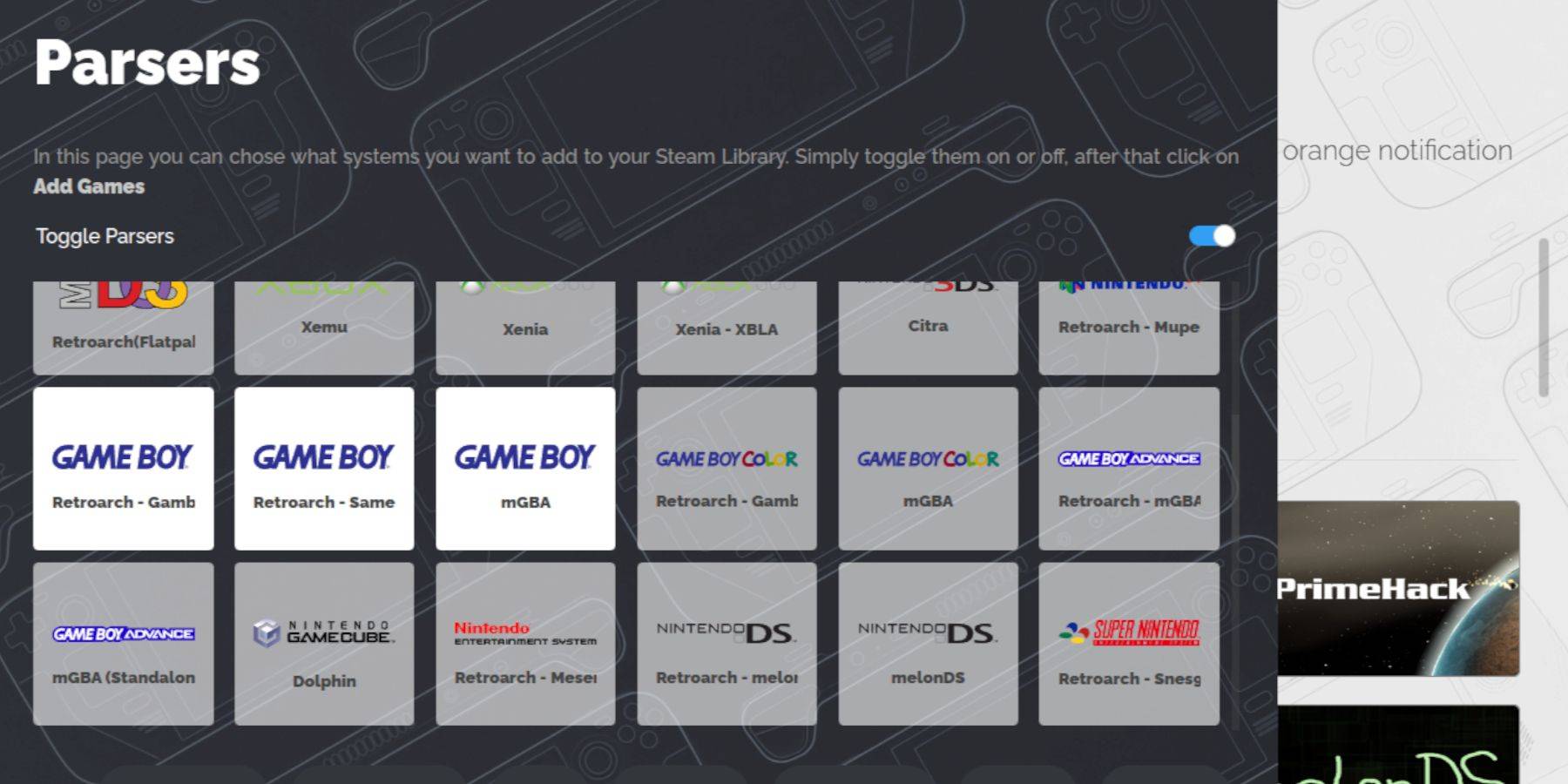 Once EmuDeck is set up, you can add your Game Boy games to the correct folder in Desktop Mode.
- Use Dolphin File Manager to access your files.
- Click 'Primary' under 'Removable Devices' on the left panel.
- Open the 'Emulation' folder.
- Navigate to 'ROMS'.
- Find and open the 'gb' folder.
- Ensure your ROMs are named correctly (refer to the table below for guidance).
- Transfer your Game Boy files into this folder.
.gb
Steam ROM Manager
With your games in the right folder, reopen the EmuDeck program and follow these steps:
- Click 'Steam ROM Manager' on the left panel.
- Select 'Yes' to close the Steam client and click 'Next'.
- In the 'Parsers' screen, toggle 'Parsers' off.
- Click on the three Game Boy tabs.
- Select 'Add Games'.
- After the Steam ROM Manager finishes adding the games and their cover art, select 'Save to Steam'.
- Wait for the "Done adding/removing entries" message and close the Steam ROM Manager.
- Exit EmuDeck and return to Gaming Mode.
Playing Game Boy Games On The Steam Deck
Now that your games are added, you can play them from your Steam Deck library:
- Press the Steam button.
- Open the 'Library'.
- Go to the 'Collections' tab.
- Select a Game Boy collection.
- Choose a game and tap 'Play'.
Customize The Game's Colors
Some Game Boy games have built-in color options, which you can enhance through RetroArch:
Not all Game Boy games support color options.
- Launch a Game Boy game.
- Press the 'Select' button (with two squares above the left analog stick) and the 'Y' button to open the RetroArch menu.
- Navigate to 'Core Options'.
- Open 'GB Colorization'.
- Choose 'Auto' for color or 'Off' for a more authentic Game Boy experience.
Using Emulation Station For Game Boy Games
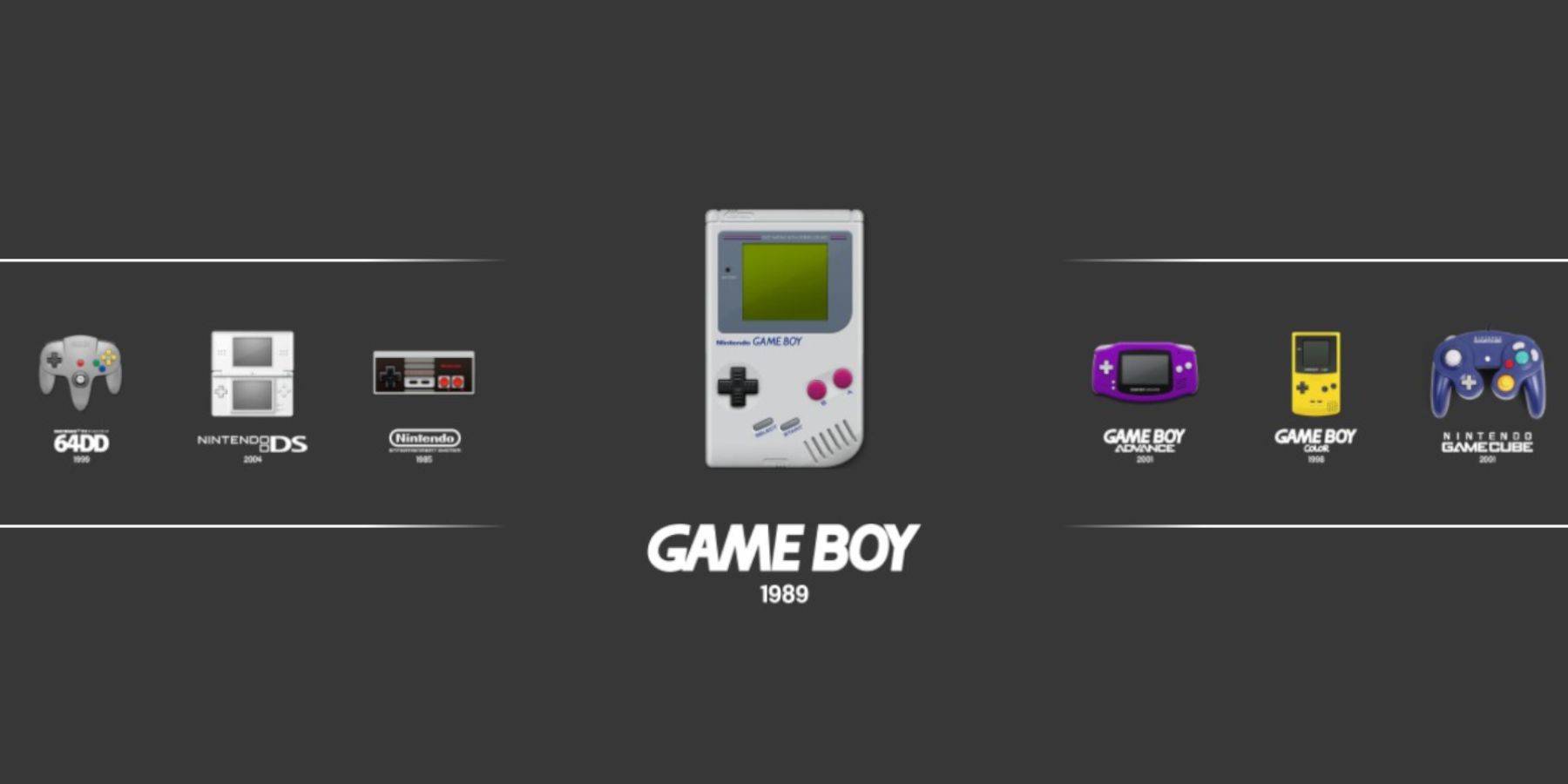 While you can launch your Game Boy games from the Steam Library, Emulation Station offers an alternative method, which can be useful if you encounter issues with the Steam interface:
- Press the Steam button.
- Open the 'Library'.
- Navigate to the 'Collections' tab.
- Select the 'Emulators' window.
- Open the 'Emulation Station' window and select 'Play'.
- Scroll to the Game Boy icon and press the 'A' button to open it.
- Press 'A' again to launch your Game Boy games.
- The RetroArch command (Select + Y) also works through Emulation Station.
Install Decky Loader On The Steam Deck
 To optimize the performance of your Game Boy games, the EmuDeck developers recommend installing Decky Loader and the Power Tools plugin. Here's how to set them up:
For easier navigation, connect a wireless or wired keyboard and mouse. If unavailable, use the onscreen keyboard and trackpads.
- In Gaming Mode, press the Steam button.
- Open the 'Power' menu and switch to 'Desktop Mode'.
- Open a web browser and visit the GitHub page for Decky Loader.
- Scroll down and click the large 'Download' icon to start the download.
- Once downloaded, double-click the launcher and select 'Recommended Install'.
- After installation, restart the Steam Deck in Gaming Mode.
Installing The Power Tools Plugin
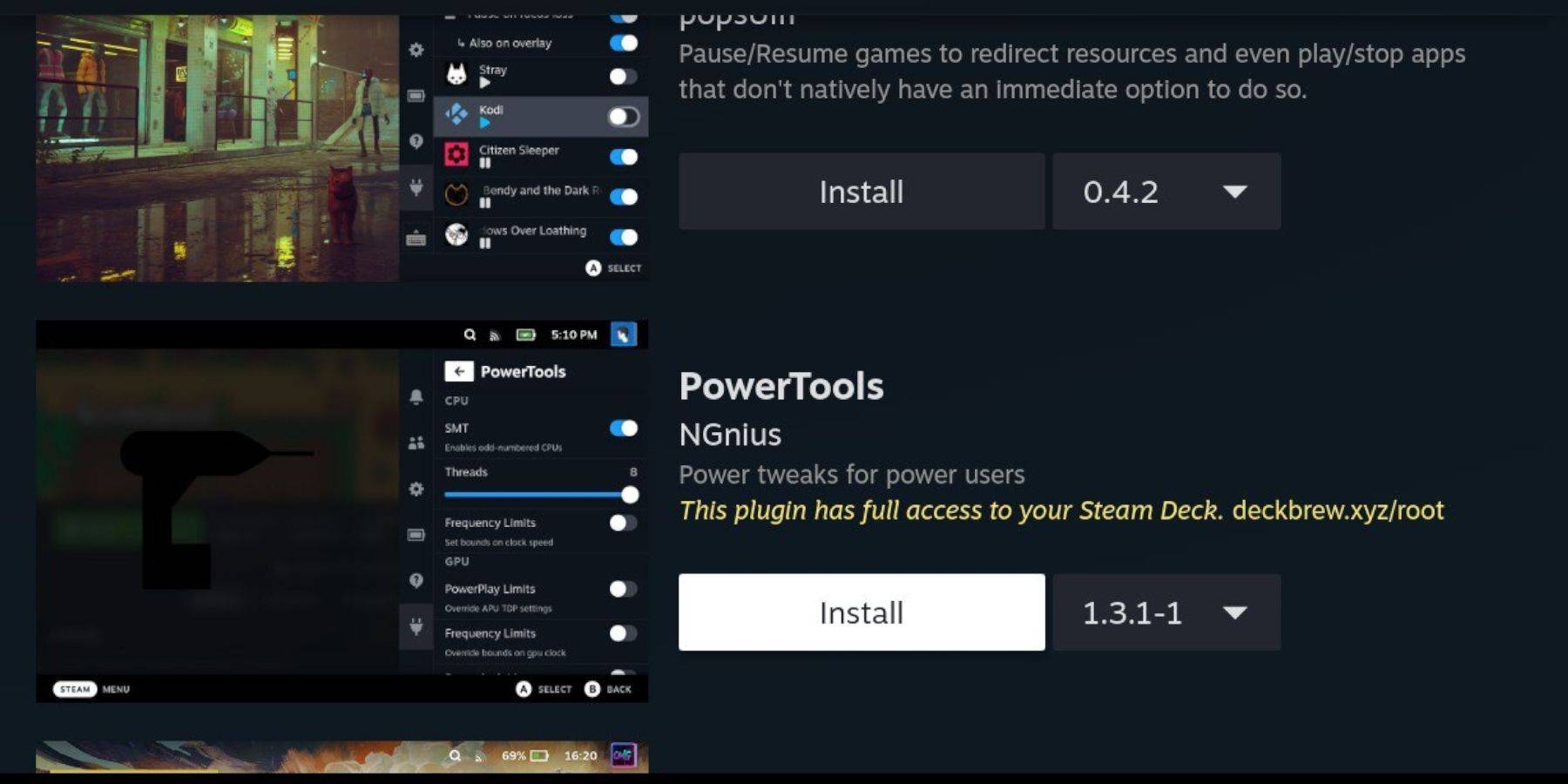 With Decky Loader installed, you can now add the Power Tools plugin to enhance your Game Boy gaming experience:
- In Gaming Mode, access the Quick Access Menu (QAM) and select the new plugin icon at the bottom of the side menu.
- Click the store icon next to the settings cogwheel to open the Decky Store.
- Use the search bar to find and install the Power Tools plugin, or scroll down to locate it.
Power Tools Settings For Emulated Games
- Press the Steam button to open the 'Library' and launch a Game Boy game from the 'Collections' tab or the 'Non-Steam' library list.
- After launching the game, press the QAM button to access Decky Loader and select the 'Power Tools' menu.
- Select 'Turn off SMTs'.
- Adjust the slider and set 'Threads' to 4.
- Press the QAM again to access the 'Performance' menu.
- In the 'Performance' menu, click 'Enable Advance View'.
- Turn 'Manual GPU Clock Control' on.
- Increase 'GPU Clock Frequency' to 1200.
- Enable the 'Per Game Profile' feature to save customized settings for each game.
Restoring Decky Loader After A Steam Deck Update
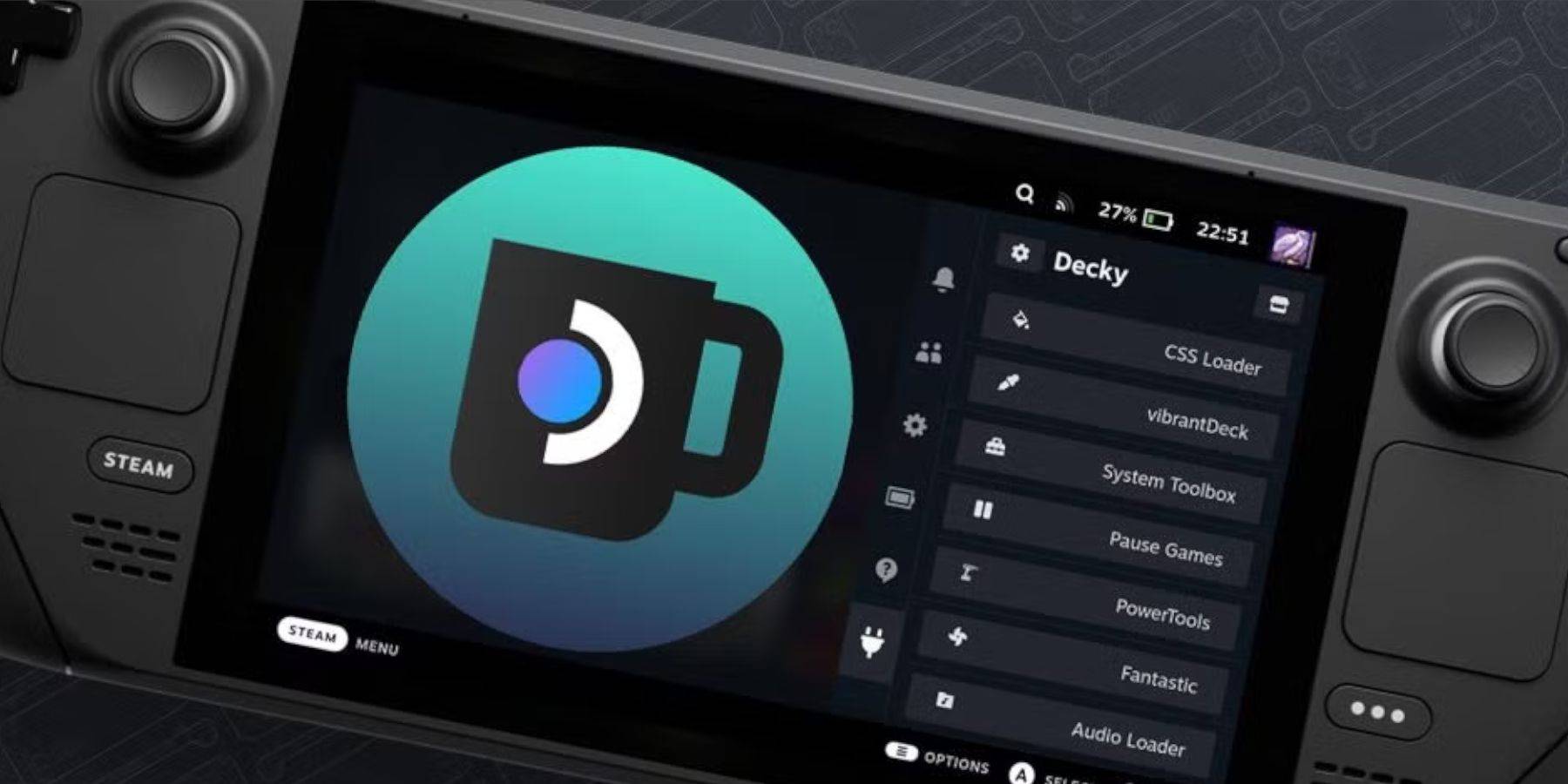 Major Steam Deck updates can sometimes disrupt third-party apps like Decky Loader. Here's how to restore it and any installed plugins, including Power Tools:
- Switch back to Desktop Mode by pressing the Steam button and selecting the 'Power' menu.
- Once in Desktop Mode, launch a browser.
- Navigate to the Decky Loader GitHub page and click the 'Download' button again.
- After the download, select only the 'Execute' option, not 'Open'.
- When prompted, enter your pseudo password in the pop-up box.
- If you haven't set a pseudo password yet, follow the onscreen steps to create one. (Choose a strong password for future unofficial app installations.)
- Restart the Steam Deck in Gaming Mode.
- To confirm that your Decky Loader app, settings, and plugins are restored, press the QAM button to access your program. If a Steam Deck update ever removes your Decky software, repeat these steps.
With these steps, you're now equipped to enjoy Game Boy games on your Steam Deck, with the ability to customize settings to your preference. The larger screen of the Steam Deck makes it an ideal platform for reliving these classic games.
 Rate NowYour comment has not been saved
-
 Summer brings endless sales opportunities, especially with events like Amazon Prime Day around the corner—making it the perfect season to grab discounted games. PC gamers should check out Humble's Capcom Publisher Sale, featuring unbeatable deals onAuthor : Samuel Dec 13,2025
 -
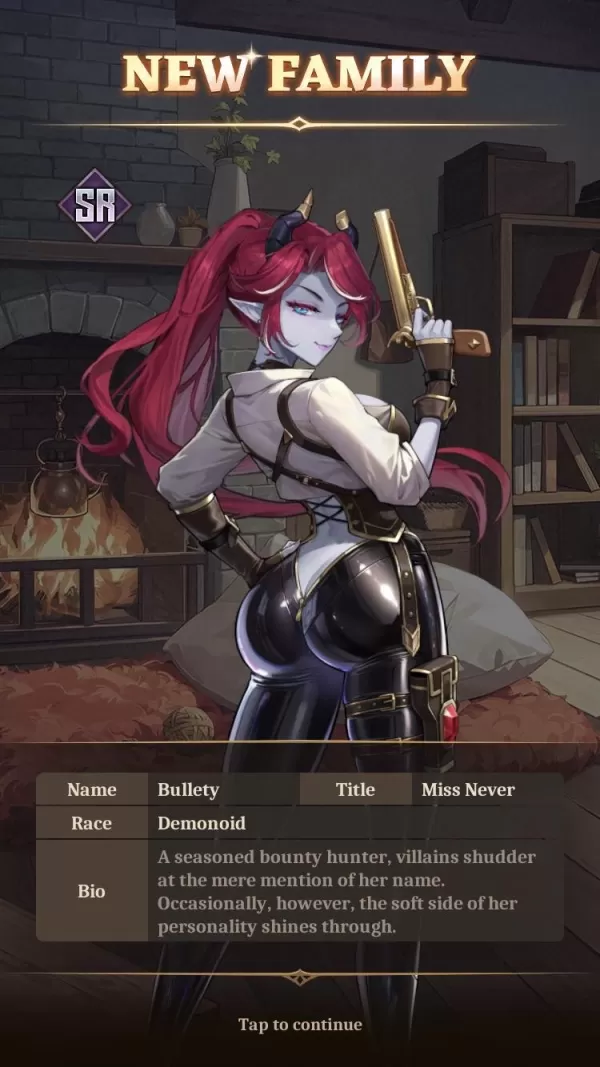 In Isekai: Slow Life, players can enlist a range of distinctive characters to craft their perfect village and family. Among them is Bullety, an SR-ranked Demonoid bounty hunter known as “Miss Never.”Author : Nora Dec 12,2025

















- Mastering Two-Handed Weapons in Elden Ring: A Guide
- Roblox Simulator Codes: Unlock Exclusive Rewards!
- Wuthering Waves: Uncover the Secrets of Whisperwind Haven's Palette
- Top 25 Palworld Mods to Enhance Your Game
- Ultimate Guide to Shinigami Progression in Hollow Era
- Karl Urban Debuts as Johnny Cage in Mortal Kombat 2